DeltaShadeShade comparison app
English

Shade comparison for dental technicians

Compare tooth shades in photos with Lab and ΔE.

Just hover over an intraoral photo opened in Preview or Photoshop. L, a and b stay right next to the cursor, even when you click the photo, and a single key press shows the color difference (CIEDE2000) from your reference point.

Mac (Apple silicon) Windows 11 9 languages
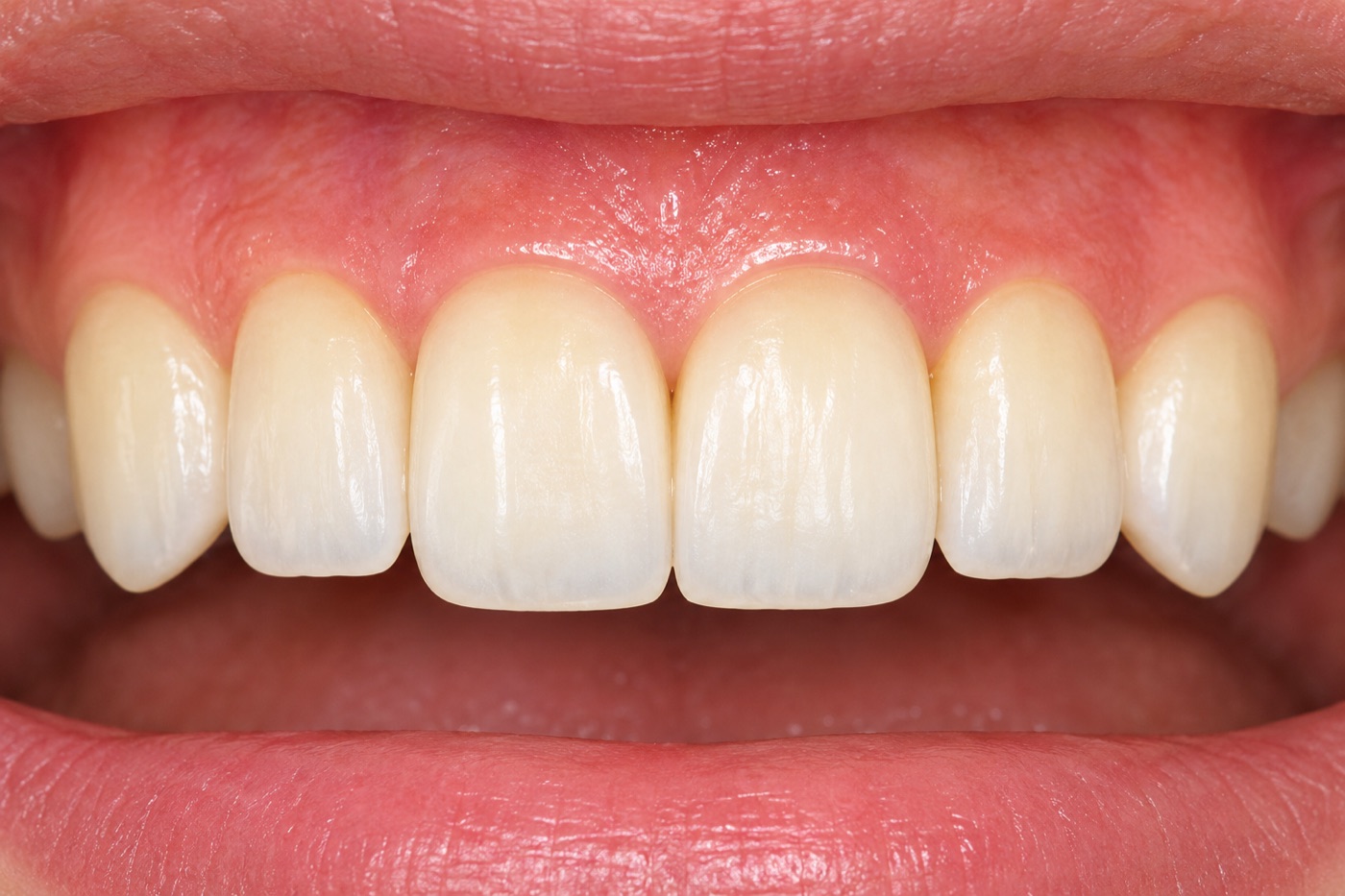
  1. ShiftShiftDouble-tap on the reference tooth
  2. →Just move the cursor to the tooth you want to compare
  3. ΔEThe difference appears next to the cursor and in the compare window

Always in front

Click the photo — the values stay visible

Digital Color Meter is an ordinary window, so it disappears behind the photo as soon as you click the photo. DeltaShade's values are always right next to the cursor, on top of everything.

Digital Color Meter
  • Values appear in a separate window in a corner of the screen
  • Click to zoom or pan the photo, and it disappears behind
  • Every time you want to read a value, you find the window and bring it back
DeltaShade
  • Values appear right next to the cursor — no need to look away
  • Always on top, even when you click the photo
  • The compare window stays in front too, so your work never stops

Features

Just what shade comparison needs

A small tool that watches quietly alongside your usual image viewer, without getting in the way.

L* a* b*

Always next to the cursor

Reads the color under the cursor about 15 times a second and shows a swatch with L, a and b right next to it.

ΔE00 / ΔE94 / ΔE76

Difference from a reference

Set a reference point and the ΔE to the cursor position is calculated on the spot. CIEDE2000 by default; switch to CIE94 or CIE76 in Settings.

11 × 11 pt

Same aperture as Digital Color Meter

Six aperture sizes from 1 to 11 (largest by default). Averages the same area, the same way, as the Digital Color Meter built into macOS.

Compare
Clear reference: press Shift + Control

Reference: double-tap ShiftSample: double-tap Control
RefDiffCurrent
L78.48−4.2774.21
a5.25+2.027.27
b16.56+2.8119.37

ΔE003.79

Reference and current, side by side

The compare window shows the reference color and the color under the cursor side by side, with the difference in L, a and b and the ΔE at a glance.

Save up to 5 samples

Save the spots you care about and review them later in the menu bar list: time, swatch, Lab and ΔE from the reference.

Never steals your clicks

Everything is done with double-taps on the keyboard. Clicks and right-click menus in Preview or Photoshop are not affected.

Mac & Windows

Windows has no built-in tool to read screen colors in Lab

Every Mac comes with Digital Color Meter, but Windows has no equivalent. DeltaShade looks and works the same on Mac and Windows, with the same keys.

Mac

Digital Color Meter, made for comparing

The values are measured exactly like Digital Color Meter, plus an always-on display next to the cursor, ΔE from a reference and saved samples.

Windows

Lab and ΔE on Windows, with the same keys

Double-tap Shift for the reference, double-tap Ctrl for a sample — the same screens and keys as on the Mac. Lab is calculated from your display's color profile.

How to use

Just three key actions

Place the cursor where you want to measure, then press the keys.

ShiftShift

Set reference

Double-tap quickly. The compare window opens.

ControlControl

Save sample

Double-tap quickly. Fills the next empty slot.

Shift+Control

Clear reference

Press both at once to clear the reference.

Accuracy

Matches Digital Color Meter to the first decimal

The Mac version reads colors and converts them to Lab the same way as the Digital Color Meter built into macOS. These are results from real photos of teeth and gums taken during development (aperture 11).

SpotDigital Color Meter (L / a / b)DeltaShade (L / a / b)Max. diff
Tooth 178.48 / 5.25 / 16.5678.49 / 5.25 / 16.560.01
Tooth 274.21 / 7.27 / 19.3774.22 / 7.27 / 19.370.01
Tooth 370.04 / 7.52 / 21.6070.05 / 7.51 / 21.610.02
Gum26.20 / 29.24 / 16.9426.20 / 29.24 / 16.940.01

The values are the colors recorded in the photo. They depend on how the photo was taken (light source, exposure, white balance), so we recommend comparing photos taken under matched conditions, for example with a gray card.

Price

One-time purchase, ¥2,000

DeltaShade — 1 license (Mac and Windows)

¥2,000tax incl., one-time

  • Download right after purchase; license key sent by email
  • One license covers up to 2 computers (Mac and Windows combined)
  • Free bug-fix updates
Checkout (coming soon)

Payment is processed by Lemon Squeezy (USA). Credit cards, PayPal, Apple Pay, Google Pay and more are accepted. The price is in Japanese yen; your card converts it to your currency.

Mac
Any Mac with Apple silicon (M1 or later), macOS 26 or later (a free update for Apple silicon Macs). Macs with Intel processors are not supported.
Windows
Windows 11 (64-bit)
Permissions
Mac only: Screen Recording and Accessibility (you'll be guided on first launch)
Languages
日本語 · English · Deutsch · 한국어 · 简体中文 · 繁體中文 · Português (Brasil · Portugal) · Español

Install

Opening it for the first time

DeltaShade is made by an independent developer who is not enrolled in Apple's or Microsoft's paid developer programs. So the first time only, you need to confirm it as follows.

Mac

  1. Open the downloaded dmg and drag DeltaShade into the Applications folder.
  2. Double-click DeltaShade. If a message says it can't be opened, click “Done”.
  3. Open System Settings → Privacy & Security, scroll down and click “Open Anyway” next to DeltaShade.
  4. Follow the guide to allow Screen Recording and Accessibility.
  5. Open the ΔE icon in the menu bar and enter the license key from your email.

Windows

  1. Double-click the downloaded DeltaShade-Setup.exe.
  2. If you see “Windows protected your PC”, click “More info” → “Run anyway”.
  3. Follow the installer. No administrator rights are needed.
  4. Open the ΔE icon in the notification area and enter the license key from your email.

Step-by-step guide with every screen →

FAQ

FAQ

What are the Screen Recording and Accessibility permissions used for?

Screen Recording is used to read the color at the cursor, and Accessibility to detect the Shift and Control double-taps. Screen images are never saved or sent anywhere.

I see “Apple could not verify…” or “Windows protected your PC”. Is it safe?

This message appears for apps from independent developers who are not enrolled in Apple's or Microsoft's paid programs. Allow it once as described in “Opening it for the first time” above, and it will open normally from then on.

Do the values change if I change my monitor's color profile?

Like Digital Color Meter, DeltaShade converts back through the profile used for display, so in most cases they don't change. Only very saturated colors that the display can't show may change.

Can it measure the actual color in the mouth?

No. DeltaShade shows the colors recorded in the photo. It is not a substitute for a colorimeter and must not be used for diagnosis. Use it to compare photos taken under the same conditions.

Does it work on Intel Macs?

No. It requires a Mac with Apple silicon (M1 or later).

Are the values the same on Mac and Windows?

Both use the same formulas, but each OS handles screen color differently, so they are not exactly the same. In our tests the same color sample differed by about 0.7 or less. Always compare on the same computer.